
Taxes (PPN) on your invoices
Who this is for: a business registered for VAT (PKP), or anyone who has to add a tax line to invoices.
Bakulai ships no tax template on purpose — whether you charge tax, at what rate, and to which account differs per business. You set it up once and it applies from then on.
Set it up once
Section titled “Set it up once”-
The account. Accounting → Chart of Accounts → open Duties and Taxes → Add Child → name it (for example PPN Keluaran), account type Tax, save.
-
The template. Avatar → Business settings → Taxes and Charges → + Add. Give it a clear name (PPN 11%), then one row: type On Net Total, the account from step 1, and the rate. Tick Default if every sale carries it.
-
Use it. New invoices pick up the default; otherwise choose the template in the invoice’s Taxes and Charges section. The tax line appears on the printed invoice under the total.
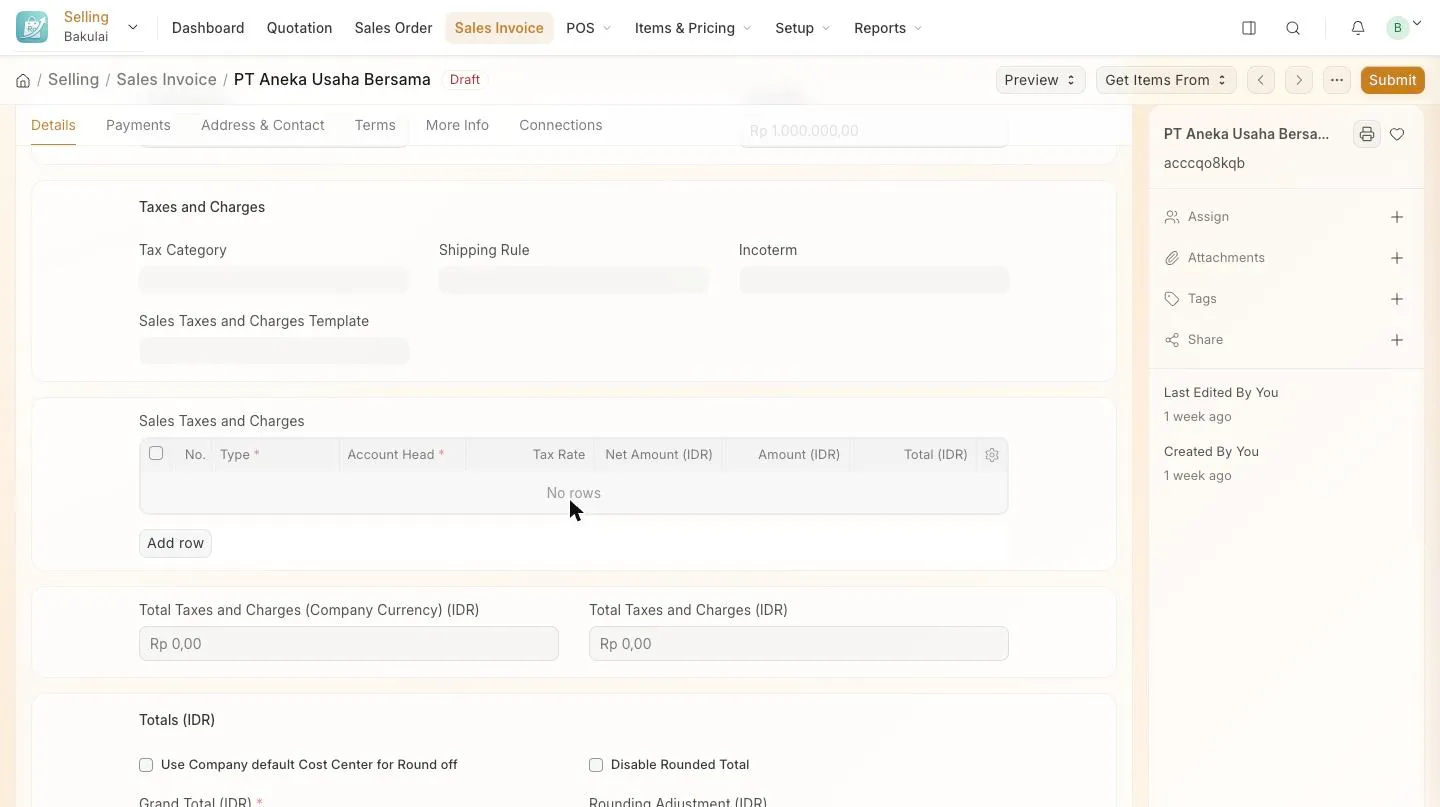
The Taxes and Charges section of an invoice -
Purchases. Repeat with a Purchase Taxes and Charges Template and an input-tax account (PPN Masukan) so what you pay is recorded too.
Customers taxed differently
Section titled “Customers taxed differently”Give the customer a Tax Category (on the customer’s form) and attach a template to that category with a Tax Rule. Exports, government customers and non-PKP buyers are the usual reasons.
Reading the numbers back
Section titled “Reading the numbers back”Accounting → Financial Reports → General Ledger, filtered to your tax account and the period, gives the output tax you charged and the input tax you paid. Or ask the assistant: “total PPN keluaran bulan ini”.