
Customers and products
Who this is for: an owner filling Bakulai with the two lists everything else needs.
Add a customer
Section titled “Add a customer”-
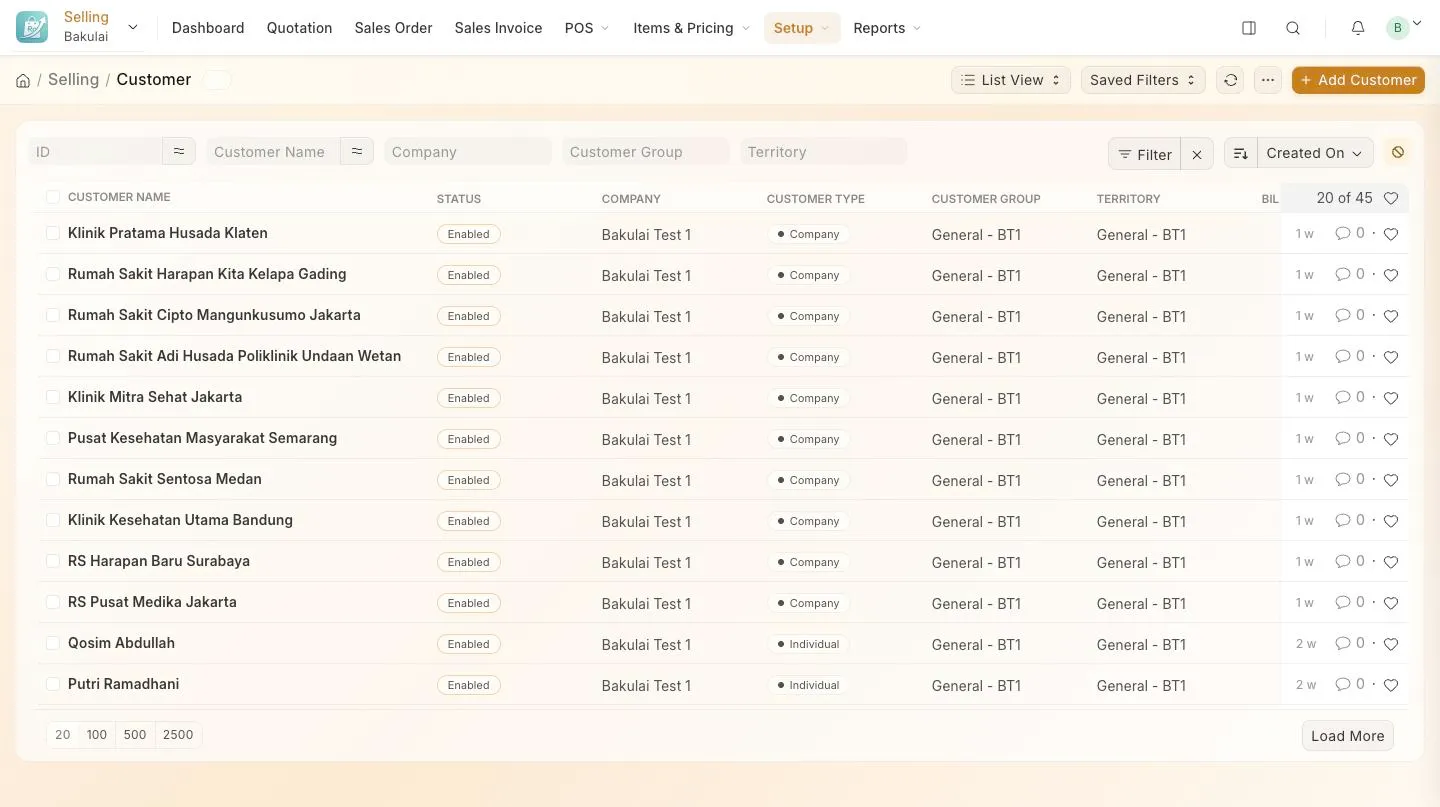
Selling → Customer → + Add Customer.
-
Type the name. That is the only thing required — customer group, territory and price list are already filled with your company’s defaults.
-
Save. Address, phone and email can be added later, from the same form.
The document is named CUST-2026-000xx; the real name stays on the form and on every printout (why).
Add a product
Section titled “Add a product”-
Selling → Item → + Add Item.
-
Fill Item Code (your own code or the barcode), Item Name, and pick an Item Group. The unit is already set —
Pcsfor shops and cafés,Unitfor services. -
Put the selling price in Standard Selling Rate. For several price lists or a wholesale price, add rows under Selling → Price List instead.
-
Save. The item is now sellable in invoices and on the POS.
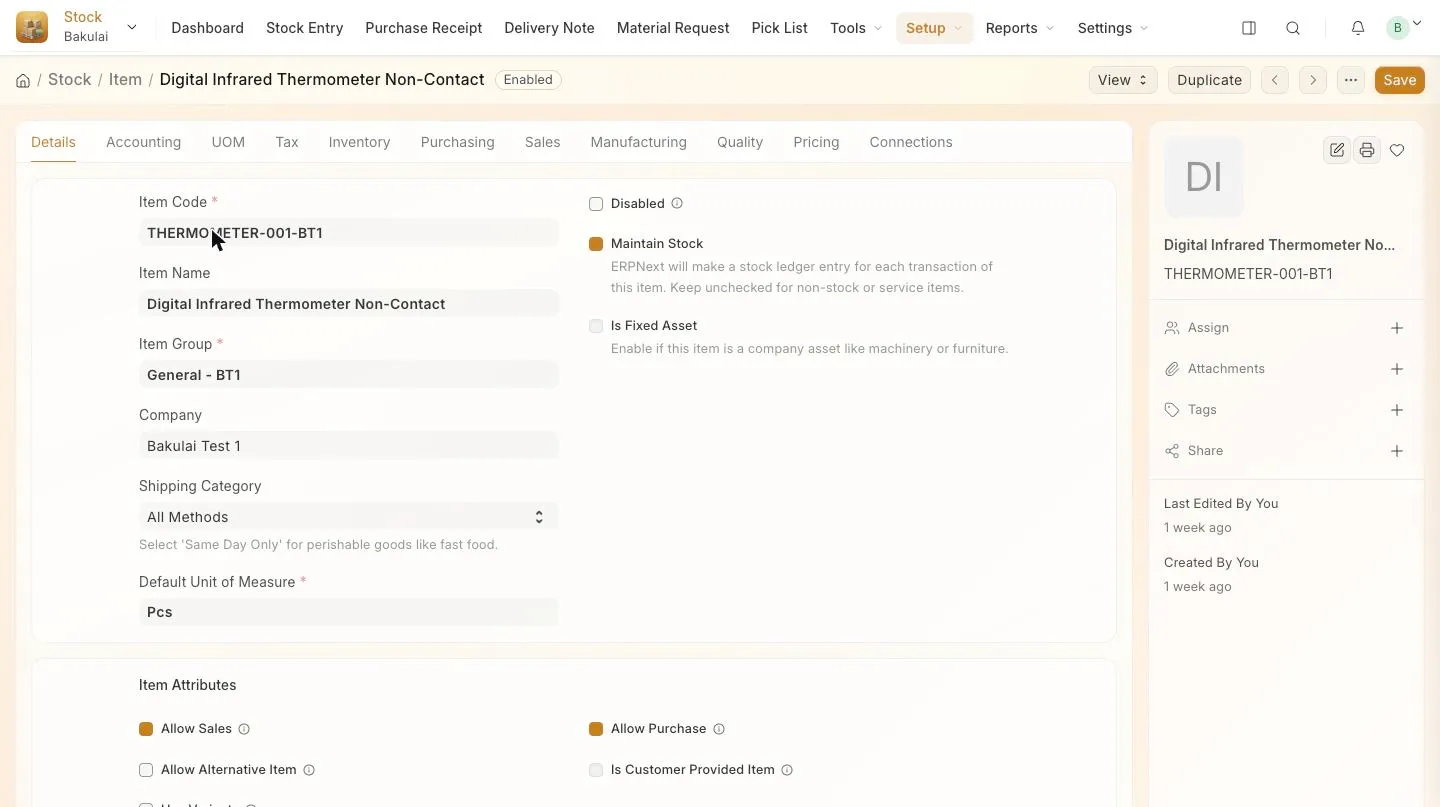
An item: code with the company suffix, group, company and unit
A whole spreadsheet at once
Section titled “A whole spreadsheet at once”The bulk import screen of ERPNext is switched off for safety, so importing runs through the migration wizard instead: upload your Excel or CSV in Move in from another app and your own Claude or ChatGPT proposes how the columns map. Every row is validated on the server, and nothing is written until you approve. It works on every plan.
Limits & safety
Section titled “Limits & safety”- Items are capped per plan: 100 on Gratis, 500 on Kasir, unlimited on Pro and Max (plans).
- Customers and items are visible to your company only — never to other businesses on Bakulai.