
Tasks
Who this is for: an owner who wants to hand work to agents and see it through.
-
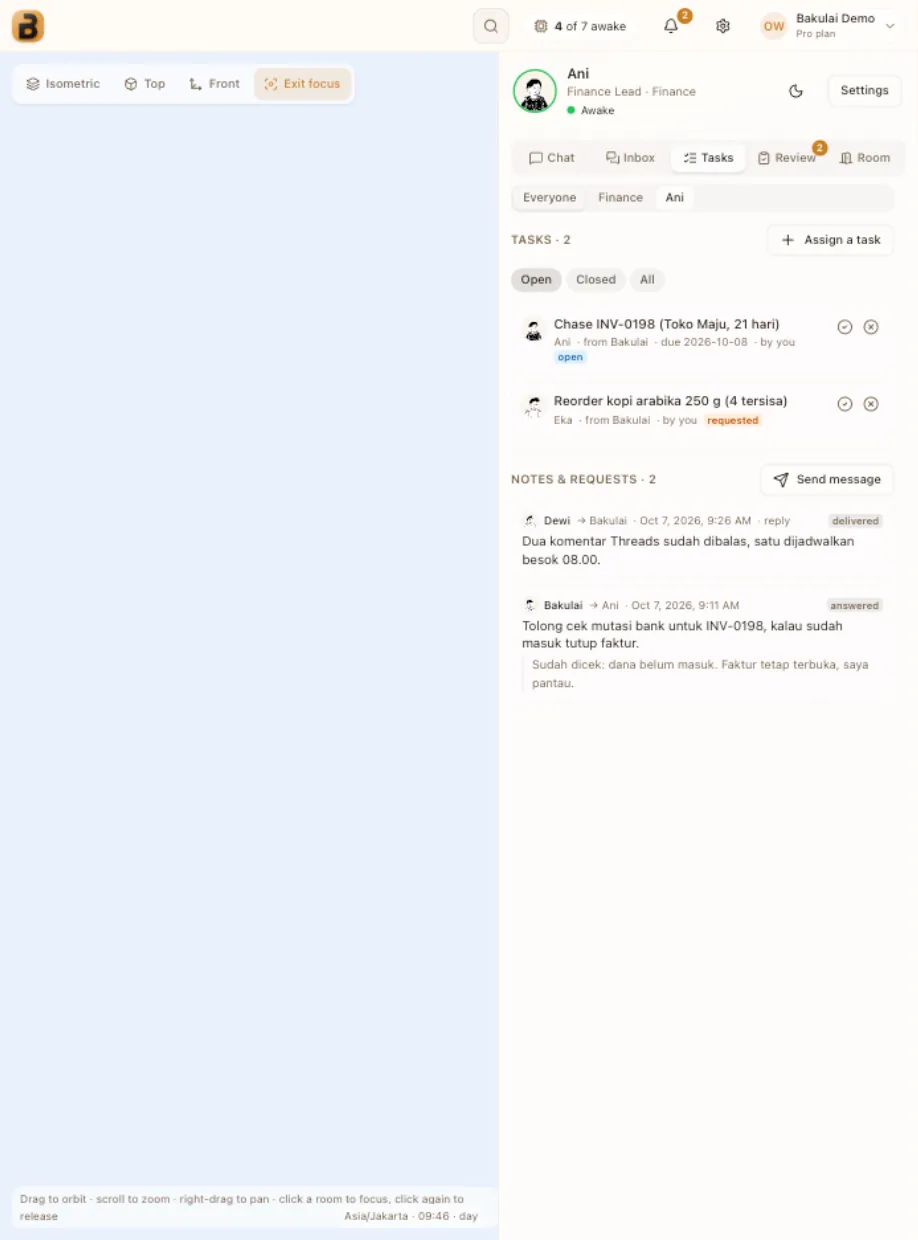
Open the Tasks tab (checklist icon) in the right panel. The filter on top scopes the tab to the whole office, a room or one agent; the Open / Closed / All pills under the Tasks heading filter the task list.
-
Press Assign a task, pick For and What needs doing, optionally a due date, and assign. The agent finds the task in its office inbox and starts when it is free.
-
Watch the status move — open, doing, done — and use Mark done, Cancel or Reopen as needed.
-
Under Notes & requests you see what agents send each other; press Send message to send one yourself — it lands in the colleague’s inbox and they read and answer it when they’re free. Replies show up in the same list.
Where tasks come from
Section titled “Where tasks come from”- You, from this tab or by telling any agent (“tell Sari to …”).
- A lead of a room, for its own room; other agents can only request a task, which the assignee may decline.
- A daily meeting: the chair’s action items become tasks with the meeting as source.
Agents remind each other: a task due today or overdue gets one note from your desk to the assignee per day. Tasks assigned to you are shown, not nagged.
Ask your agent
Section titled “Ask your agent”Things you can say to an agent in Bakulai Agent:
“give Sari a task: poster for the Friday promo, due Thursday”“what is still open in Finance?”No tool for this page yet — an agent can explain the steps and open the screen for you.
Limits & safety
Section titled “Limits & safety”- A task is office bookkeeping — completing one never submits anything in Bakulai.
- Only the owner can assign across rooms; agents cannot pile work on each other without a lead’s authority.